

Sendmode, a leading supplier of Enterprise Level Bulk SMS & WhatsApp Messaging Solutions have created an easy way for you to build your customer database in full compliance with GDPR, Data Protection and PECR requirements.
The Problem.
I have 1,000 followers on my Facebook group but my posts keep getting lost in the social noise. I would like to get more of them onto my SMS list so I can send them offers by SMS directly to their mobiles. I know for a fact 90% of SMS are read within 3 minutes of receipt.
The Solution.
We call it Contact Capture. You can easily create a custom Opt-In page in Sendmode and publish a link to this page on your Facebook profile or posts. You can even publish this in your email signature and to any other social media channels you use.
When a customer adds their number they have opted in to your SMS group, fully compliant with GDPR and PECR. You can now SMS them directly using Sendmode.
To setup a contact capture form. It will take less than 1 minute. Here’s how.
Step 1. Goto Integrations and Click Contact Capture.
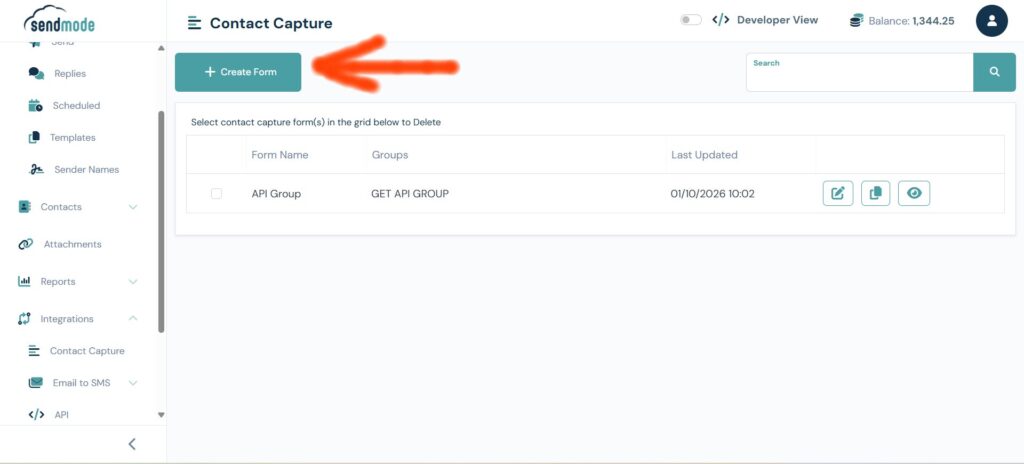
Click on Create Form to get started.
Step 2. Give the Form a Name and choose Groups to add into.
In this case we will be publishing the contact capture link on Facebook so we want to add any opt-ins directly into our Facebook Group. ** You may need to go back out and create a new group if you havent done so **
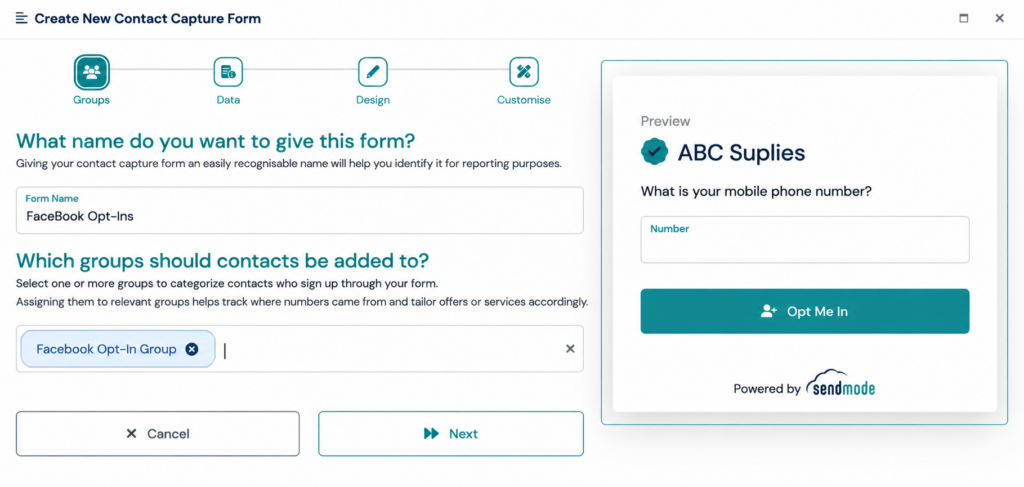
Note: On the right hand side you will be the Preview of what your customers will see.
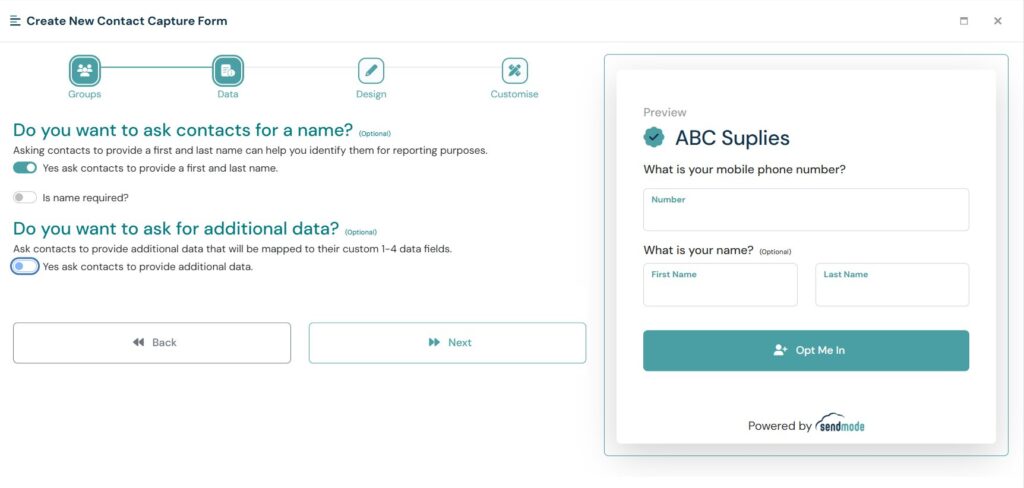
Step 3. Do you want to get more information from your customers on the form?
Maybe First Name, Last Name, Email? You can easily add these to the form by clicking the contact names checkbox or adding some custom data here.
Note: The Preview Screen is building the form on the fly so you can see exactly how it will look to your customers.
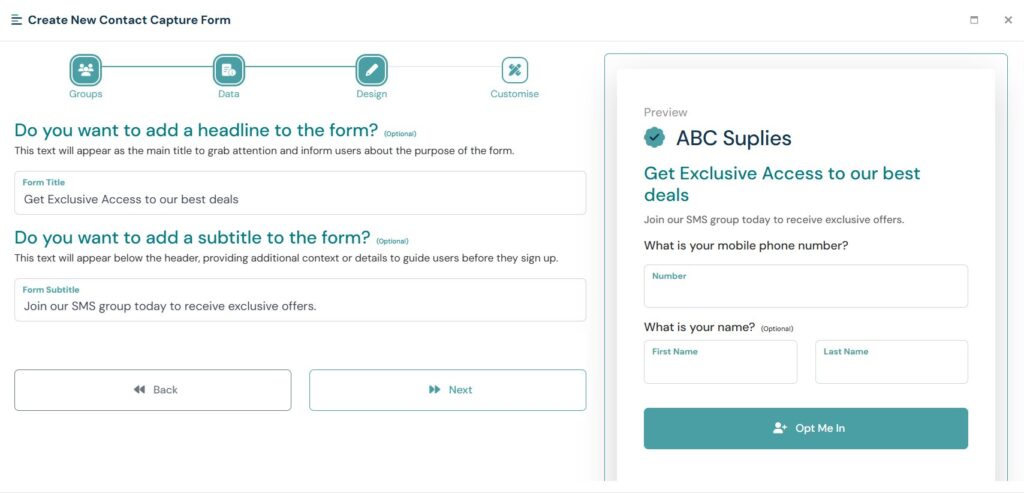
Step 4. Add a Headling and Subtitle to the form.
Step 5. Customise the form link.
We are going to use this in our Facebook profile and posts so we’ll customise the link to Facebook. Click Create and thats your form done.
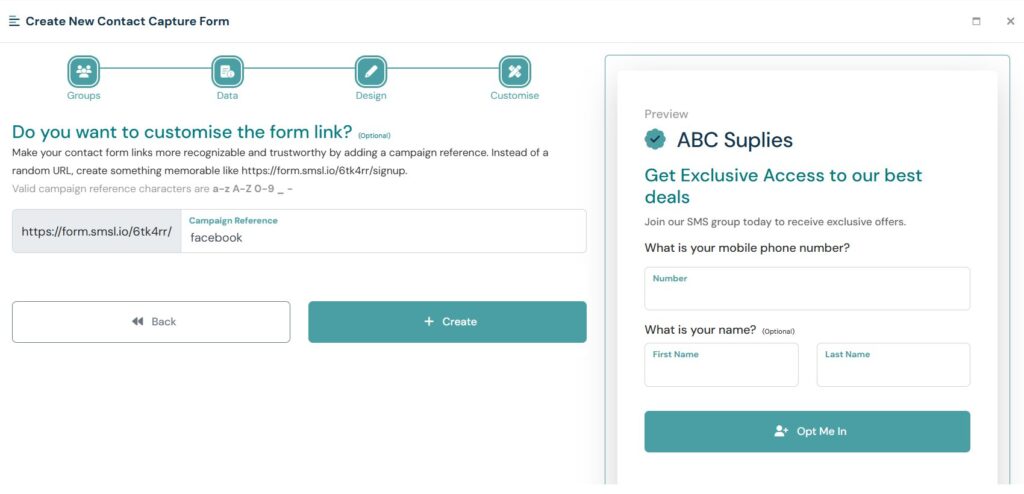
Step 6. Use the link Anywhere you want to add new customers.
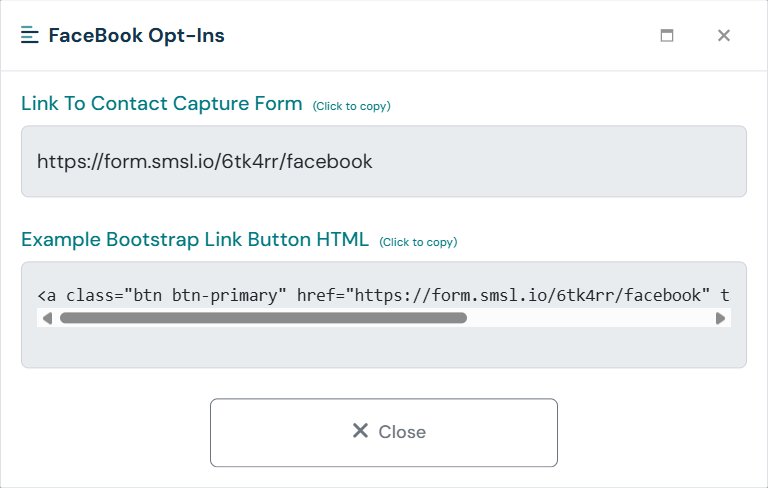
Once the link is created click on on the big EYE. It is the View form Link button and it will popup the link to post on your Facebook, Email and any other socials. It will also show a small piece of HTML code if you wish to use the link on your website.
Thank you for reading. If you have any questions please contact [email protected] at anytime, we are delighted to help.
Thanks,
John